
Works keeps track of each printer's servicing, by print hours, by date, or both. Open a printer and go to its Maintenance tab.
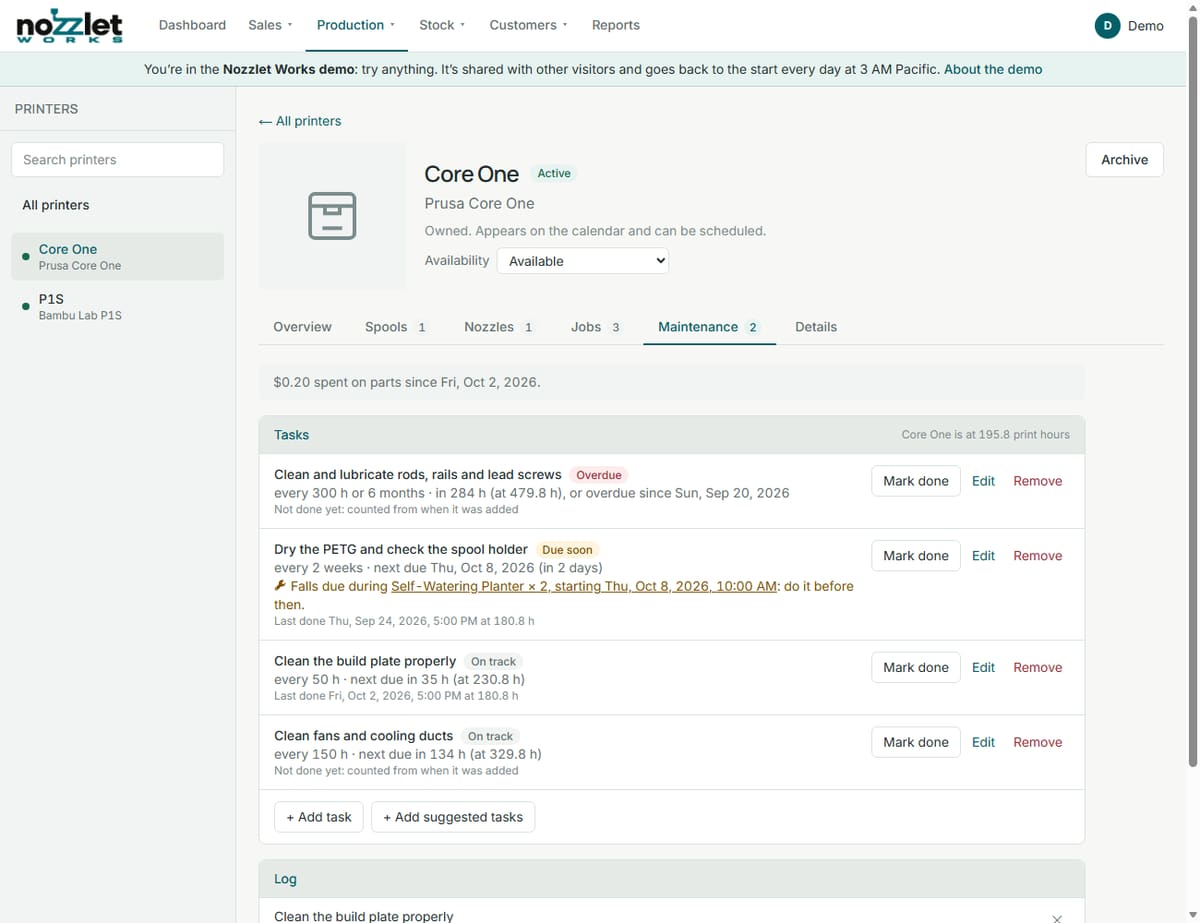
Tasks
Each task repeats:
- every so many print hours (e.g. clean the build plate every 50 h),
- every so many days, weeks or months (e.g. lubricate the rails every 6 months), or
- both, whichever comes first.
Each shows On track, Due soon or Overdue, with when it's next due. When you've done it, click Mark done and the count starts again. + Add task adds one; Edit or Remove change them.
Not sure where to start? + Add suggested tasks fills in a general starter schedule for you to edit to suit your printer.
Due during a job
Works finds the job during which a task falls due, and tells you to do it before then, for example "Falls due during Self-Watering Planter × 2, starting Thu at 10:00 AM: do it before then." These show on the schedule and the Dashboard, and Find a time mentions overdue maintenance on its suggestions.
Parts used
When you mark a task done or log work, you can record the parts used, such as alcohol wipes, a PTFE tube or a nozzle. A task can list the parts it usually needs, and they're filled in for you when you mark it done. They come out of your stock, and Works shows what you've spent on parts so far, and per print hour. Deleting a log entry puts its parts back.
The log
The Log lists the work done, with the date, the printer's hours and any parts. + Log other work records anything that isn't a task, and Record meter reading sets the printer's hours from its own counter.
When a printer is down for servicing, set its availability to Down for maintenance so nothing is scheduled on it (see Printers). For what to do and how often, see the guide 3D printer maintenance schedule.