
A plate is a print setup you save once: what's on the build plate, which printer it runs on, how long it takes and how much filament it uses. Costing and the schedule then just pick it. Find them under Production › Plates.
What's on a plate
Add plate asks for:
- Name (e.g. "Phone Stand × 6", or "Tracer mixed plate") and Printer.
- Build time, from your slicer, and Hands-on time: setup, plate removal and support clean-up.
- Nozzles (optional): what it was sliced for, so Works can check it against the printer it runs on. Leave it Not set to skip the check.
- Filament for the whole plate: each filament and its total grams, as the slicer reports them (support, brim and purge included). + Add filament for each colour or material.
- What it yields: the items that come off the plate and how many of each. + Add item for one you already have, or + New Made item to create it on the spot.
- Notes.
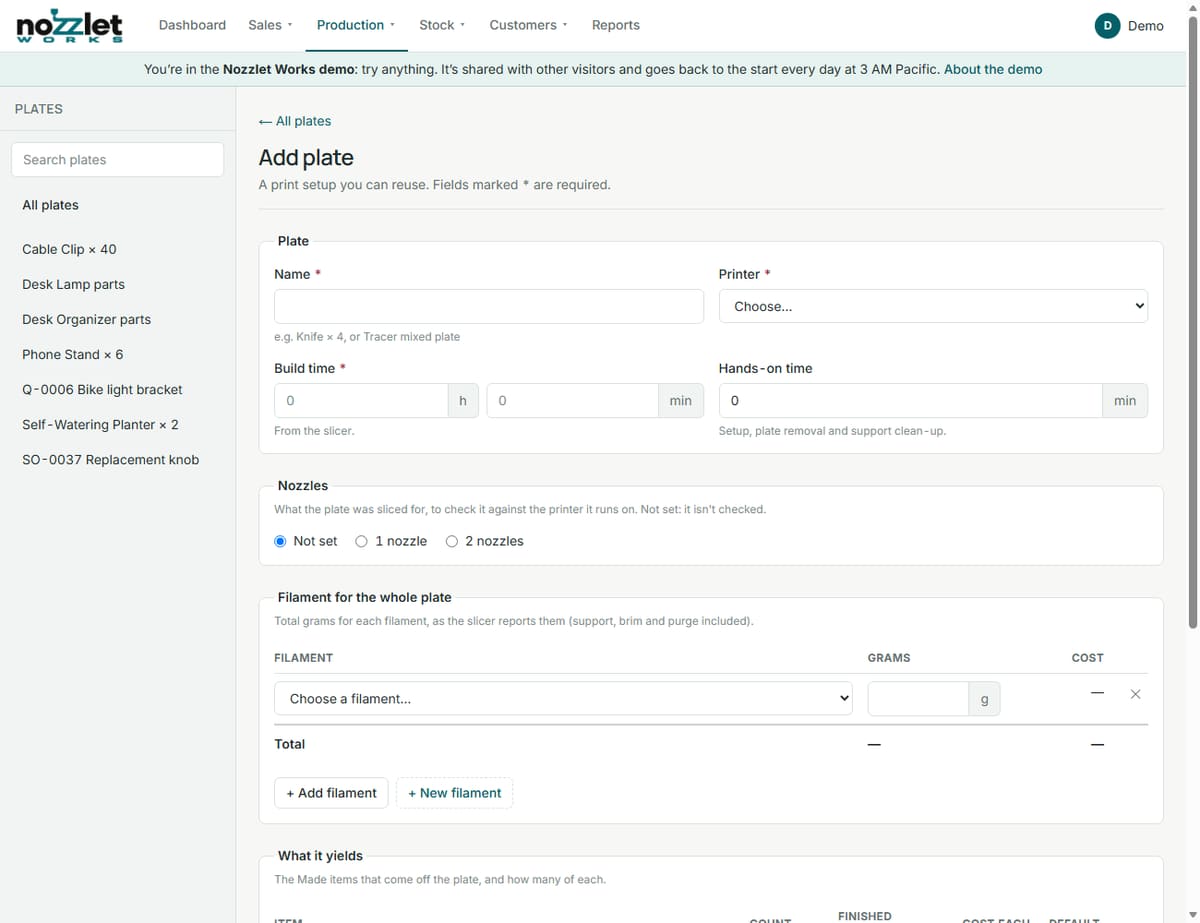
New filaments can also be created on the fly with + New filament.
Mixed plates
A plate can yield several different items, such as an organizer's tray and lid printed together. Works splits the plate's cost between them by finished weight, or by shares you type in. Each item then shows its own cost, print time and filament.
A plate's tabs
- Overview: its details at a glance.
- Cost: the full cost breakdown and each item's share (see How Works costs a print).
- Jobs: every time it's been scheduled or printed.
- Details: everything you entered.
Schedule adds a job for it straight away. Duplicate copies it, for example to make the same plate for another printer, then you can compare their costs and choose each item's default plate.
One-off plates
A one-off print sold through Quick job (a replacement knob, say) is saved as a plate named after its order, such as "SO-0012 Replacement knob", and labelled One-off for SO-0012. It yields no product, so finishing its job adds nothing to stock. If it doesn't come out right, tick It didn't come out right when finishing, and print it again.