
Once Works knows what a product costs, it helps you decide what to charge, and shows what each product really earns.
Your target margin
In Settings › Edit settings, the Target gross margin is the share of the price (before tax) you want to keep as profit. Works suggests a price for every product that reaches it. A 40% target on a $9 cost suggests $15: $6 of profit is 40% of $15.
A product's price
A product's price is its Retail price (MSRP): one unit, before tax. Tax is added on top. Set it on the product's Selling card (on its Details or Pricing tab) with Edit.
The Pricing tab shows:
- Cost per unit,
- Retail (MSRP), before tax and with your taxes,
- Profit each, and per print hour,
- Margin, next to your target.
The price calculator
Also on the Pricing tab. Type into any box and the others follow:
- Markup %: profit ÷ cost,
- Margin %: profit ÷ price before tax,
- Profit: a flat amount on top of cost,
- Price before tax, or
- Price with tax. To land on a round price with tax (say $20.00), type it in the last box.
The calculator doesn't save anything. When you've found your price, set it in Selling.
Which products earn the most
Under Sales › Products, switch from By category to Ranked, then rank by:
- Profit per print hour: what to put on a free printer,
- Profit per 100 g: what makes the most of your filament,
- Profit each, or Margin.
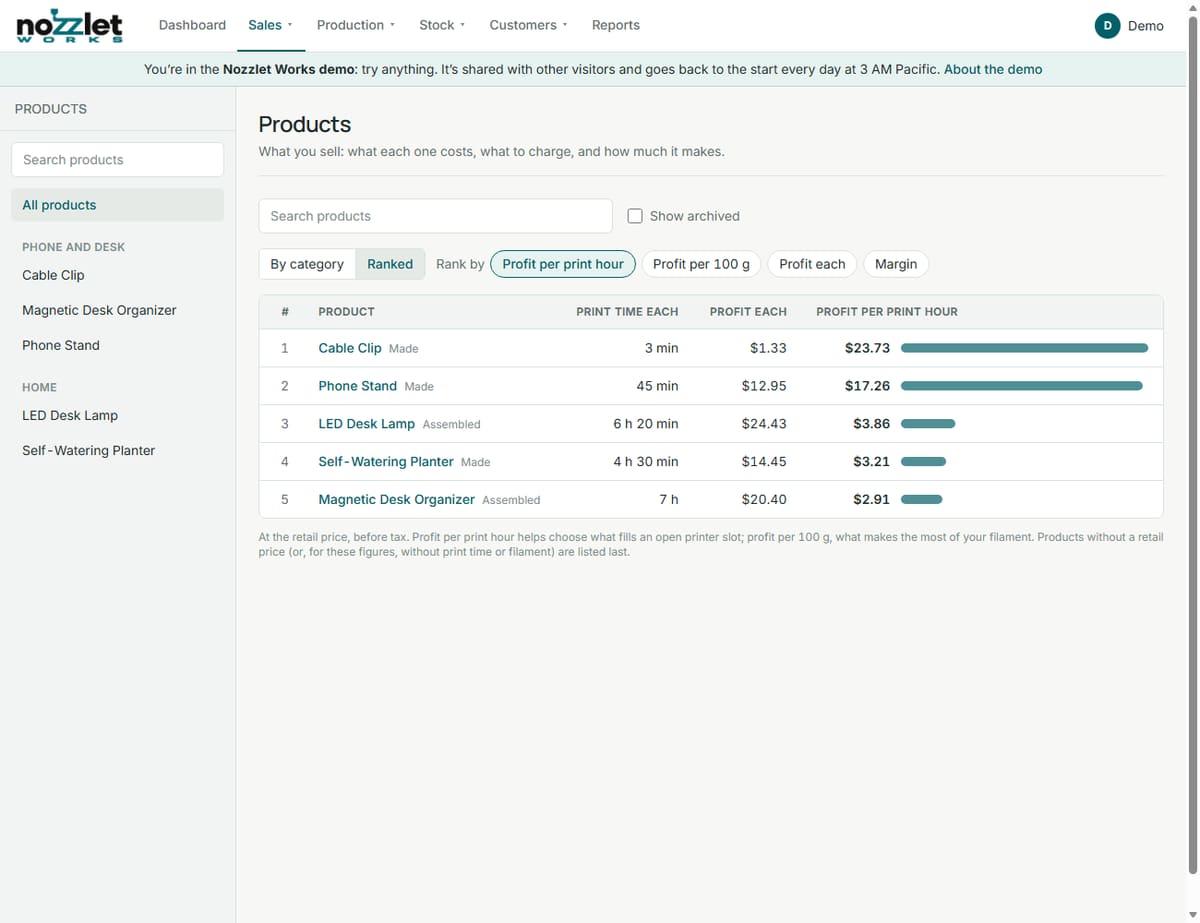
A small, quick print can earn far more per hour than a big one with a higher price. In the demo, a $1.50 cable clip earns more per print hour than a $24 planter.
Small jobs and rush jobs
- Minimum job charge (Settings): small orders are topped up to it automatically.
- Rush fee (Settings): a percentage added when you tick Rush in Quick job.
See also Taxes and Wholesale, and for the method behind it all, the guide How to price 3D prints.