
Production › Schedule is a calendar of every printer, planned around when you're awake to start and empty them.
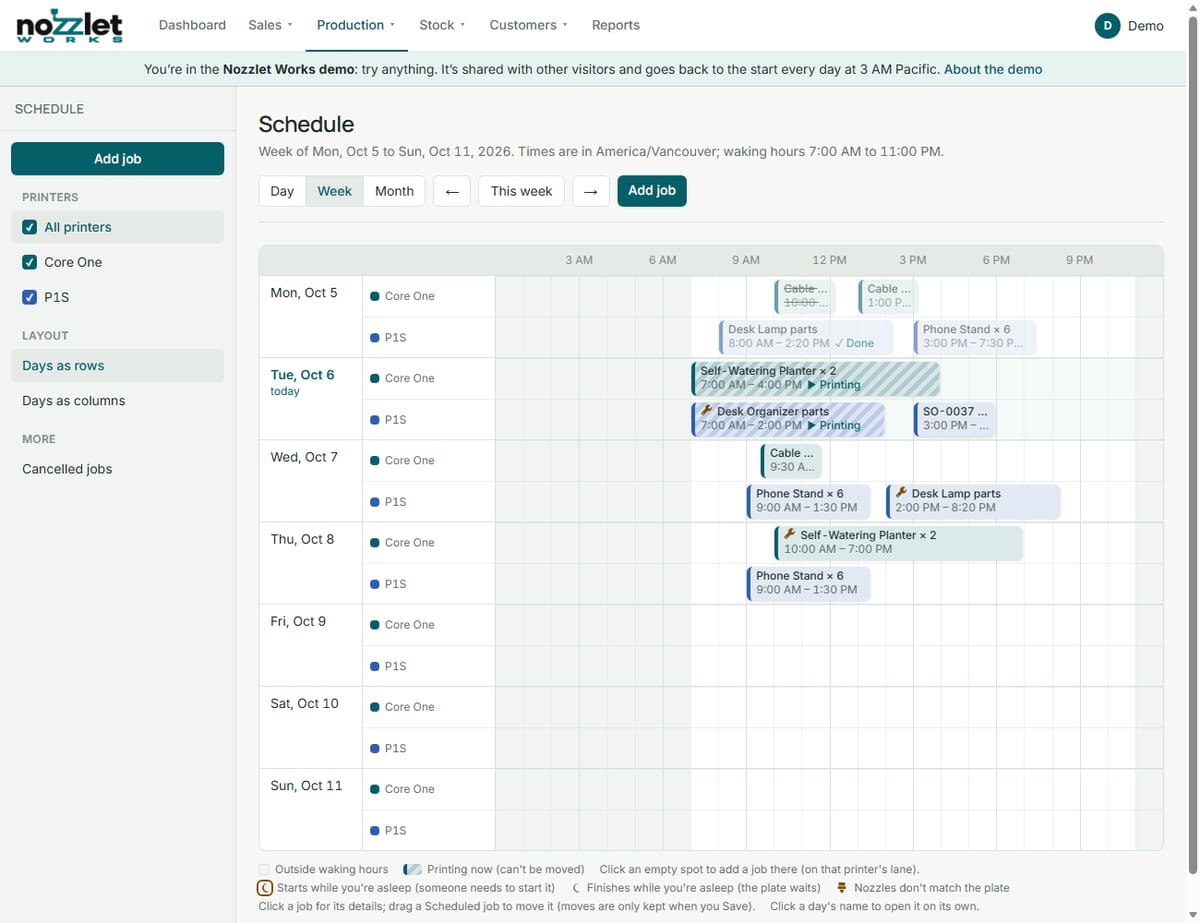
Views
- Day, Week or Month, with ← and → to move and This week to come back.
- The week as Days as rows (a lane for each printer) or Days as columns.
- Tick the printers to show at the side.
Times are in your shop's time zone. Hours outside your waking hours are shaded.
Adding a job
A job is one print of a plate. Click Add job, or click an empty spot on a printer's lane to add a job there. Choose the Plate, the Printer (its own, or any active one), and How many times to print it back to back (up to 50). Then when to Start:
- After the last job on this printer, plus your changeover time (or now, if it's free),
- At a date and time, or
- Find a time.
Find a time
Find a time looks across every available printer and suggests the best places for the job:
- Earliest finish: where it would be done soonest.
- Fills a gap: idle time before a job that's already booked, starting as late as it fits, with the time to spare.
- Overnight: starts before bed and is done by morning.
- Ready for pickup, when you schedule for an order with a due date: the latest start that's done (with its hands-on time) by the morning it's due, or a note that it can't be.
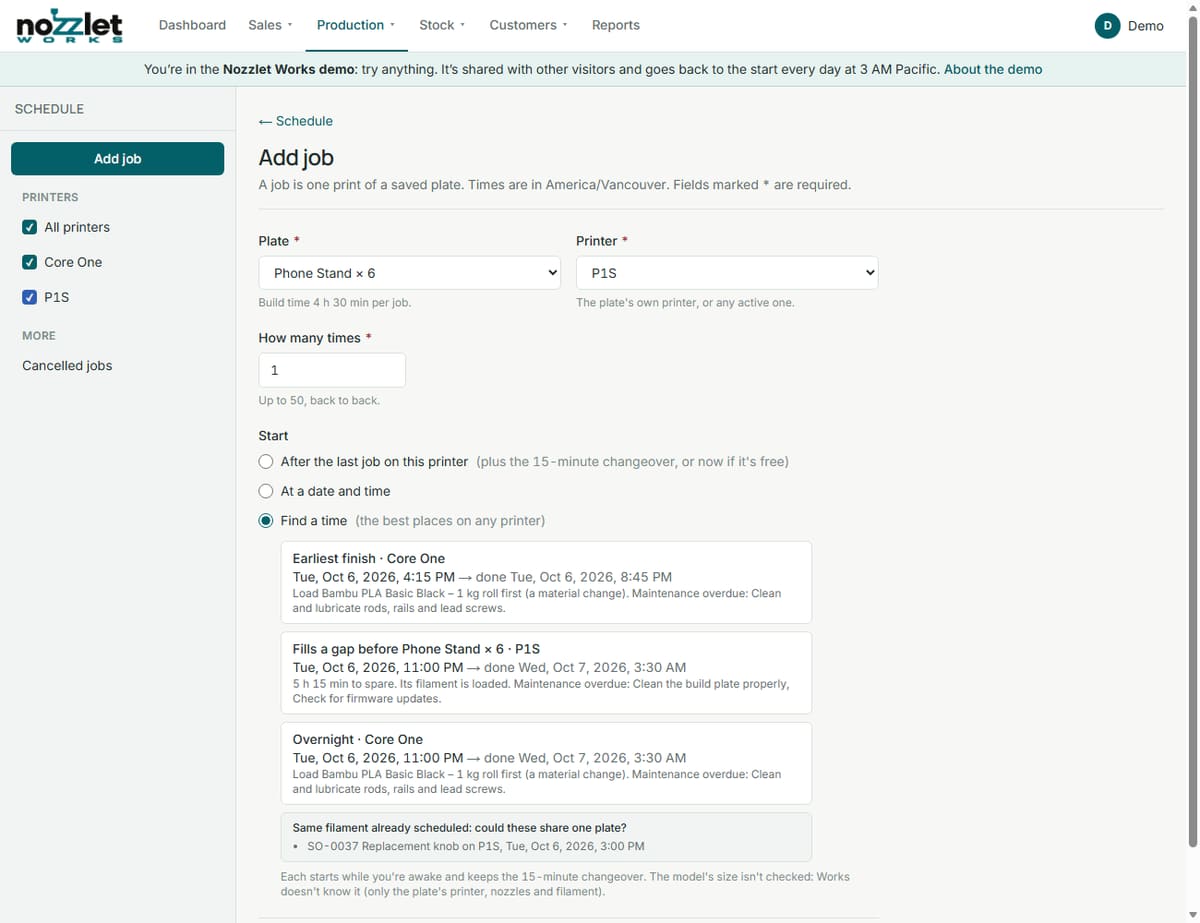
Each suggestion says whether the filament is already loaded or needs changing, and any maintenance that's overdue. Works also points out jobs already scheduled with the same filament that could perhaps share one plate. Pick a suggestion and it fills in the printer, date and time.
Printers that are down for maintenance or out of service are left out (and listed). Works doesn't know the model's size, so it doesn't check that it fits the printer.
Waking hours and changeovers
In Settings › Edit settings, set when you're Awake from and Awake until, and your Changeover time between jobs. On the calendar, Works marks a job that starts while you're asleep (someone needs to start it) or finishes while you're asleep (the plate waits until morning).
Moving jobs
Drag a scheduled job to another time, or to another printer. Moves aren't kept until you Save; use Undo and Redo, or Discard to put things back. Jobs that clash turn red. A job that's printing can't be moved.
Click a job for its details, and to start or finish it (see Starting and finishing a job). Cancelled jobs are listed under Cancelled jobs, where you can Restore them.