
Works doesn't assume where you are. You list the taxes you charge, and Works applies them to your prices, quotes, orders and invoices.
Your tax list
Open Settings › Taxes and click Add for each tax, with its name and rate: for example GST 5% and PST 7% in British Columbia, HST 13% in Ontario, or a US state sales tax. Their rates are added together. Use ↑ ↓ to put them in order, Edit to change one, and Delete to remove it. Changes save straight away.
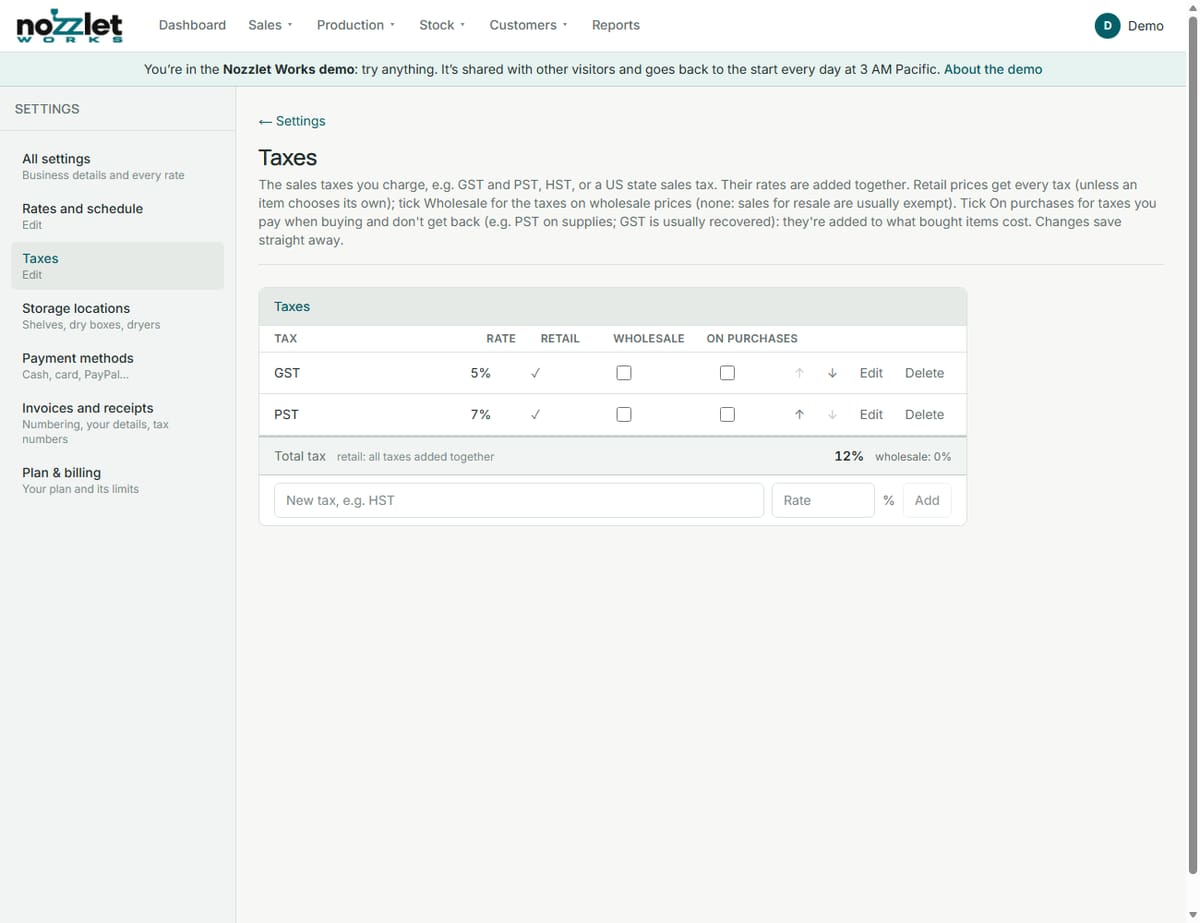
Each tax has three ticks:
- Retail: charged on your retail prices.
- Wholesale: charged on wholesale prices. Sales for resale are usually exempt, so leave these unticked unless you need them.
- On purchases: a tax you pay when buying and don't get back, such as PST on supplies. Works adds it to what bought items cost. (GST is usually recovered, so leave it unticked.)
Only charge taxes you're registered for. When you issue invoices and receipts, add your registration numbers in Settings › Invoices and receipts; Works warns you when a document charges a tax with no number.
A product's taxes
Retail prices get every tax ticked Retail, unless a product chooses its own: on the product's Selling card, choose which taxes it uses (for example, an item that's exempt from PST). Wholesale prices use the taxes ticked Wholesale.
Changing many items at once
Bulk tax changes in Inventory let you change the taxes on many items in one go.
Not yet: tax by the destination province for shipped orders.