
Sales › Orders lists what your customers have ordered, with a Quotes tab for the prices you've offered. New quote and New order start one; you can also start them from a customer's page.
Quotes
A quote (Q-0001) is a price for the customer to say yes to.
- Add products at their price (the suggested price is shown) and custom lines, then a discount, shipping and your taxes.
- It's valid until a date: 30 days to start.
- It's a Draft, then Sent, or Declined. A sent quote past its date shows Expired.
When they say yes, Make it a sale: the quote becomes an order (SO-…), Confirmed, without retyping anything. Back to quote undoes it, as long as nothing's been paid.
Orders
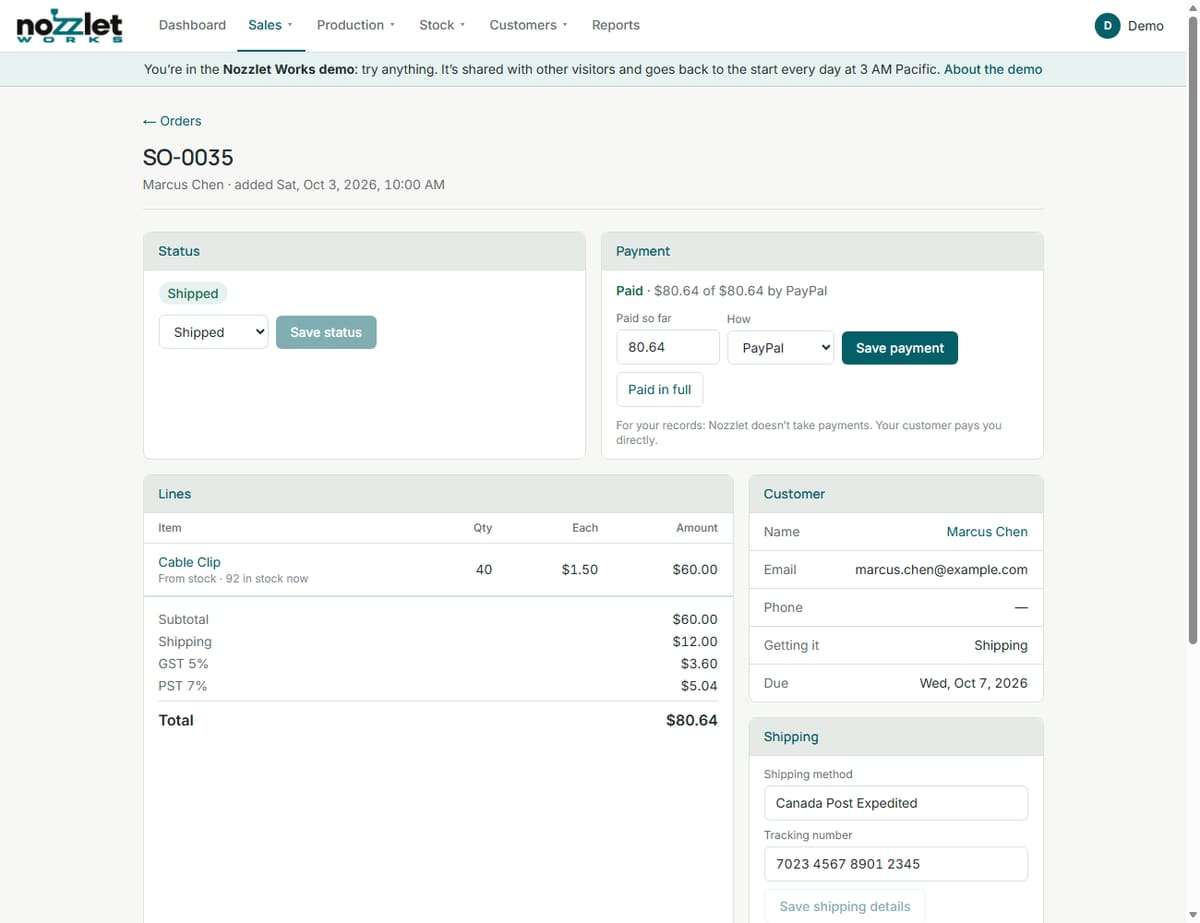
- Who and when: a customer or Walk-in, pickup or shipping, and a due date.
- Lines: products (at their retail price; the suggested price is shown) or custom lines. Each product line is From stock or Print it.
- Totals: a discount (before tax), shipping, an automatic top-up to your minimum job charge on small orders, and each tax, worked out line by line (using each product's own tax choice).
- Profit for the order, before tax.
- Notes only you see, and a note for the customer.
Status
Confirmed → Scheduled → Printing → Finishing → Ready → Shipped / Picked up → Completed, or Cancelled (with Restore). Choose one and Save status; you can always set it back.
The order follows its print jobs: Scheduled when jobs are added, Printing when one starts, Finishing when they're done.
Stock: Picked up, Shipped or Completed takes its products off stock; setting it back returns them. A shipped order can't be edited (its products have left stock), but its shipping details can.
Print jobs
For Print it lines, the order lists the plates needed. Schedule N plates opens Add job, linked to the order. The order's jobs are listed on it, and the job's panel on the schedule links back to the order.
Payment
Payments are for your records: customers pay you directly. Enter what's been paid so far and how, then Save payment. The order shows Unpaid, Deposit paid or Paid, and the balance owing.
Shipping and the ready email
- Shipping method and tracking number, any time.
- Marking an order Ready offers to email the customer (ticked when they gave an email): "Your order SO-0012 from your shop is ready for pickup" (or "packed and ready to ship"), with what's in it, the total and any balance owing. Their replies come to you. The order shows when it was sent, and a Ready order can Email again.
For invoices, receipts and refunds, see Invoices, receipts and credit notes.