
Quick job is one screen for a sale at the counter, done in a couple of minutes. Open it from Quick job on the Dashboard, or Sales › Quick job.
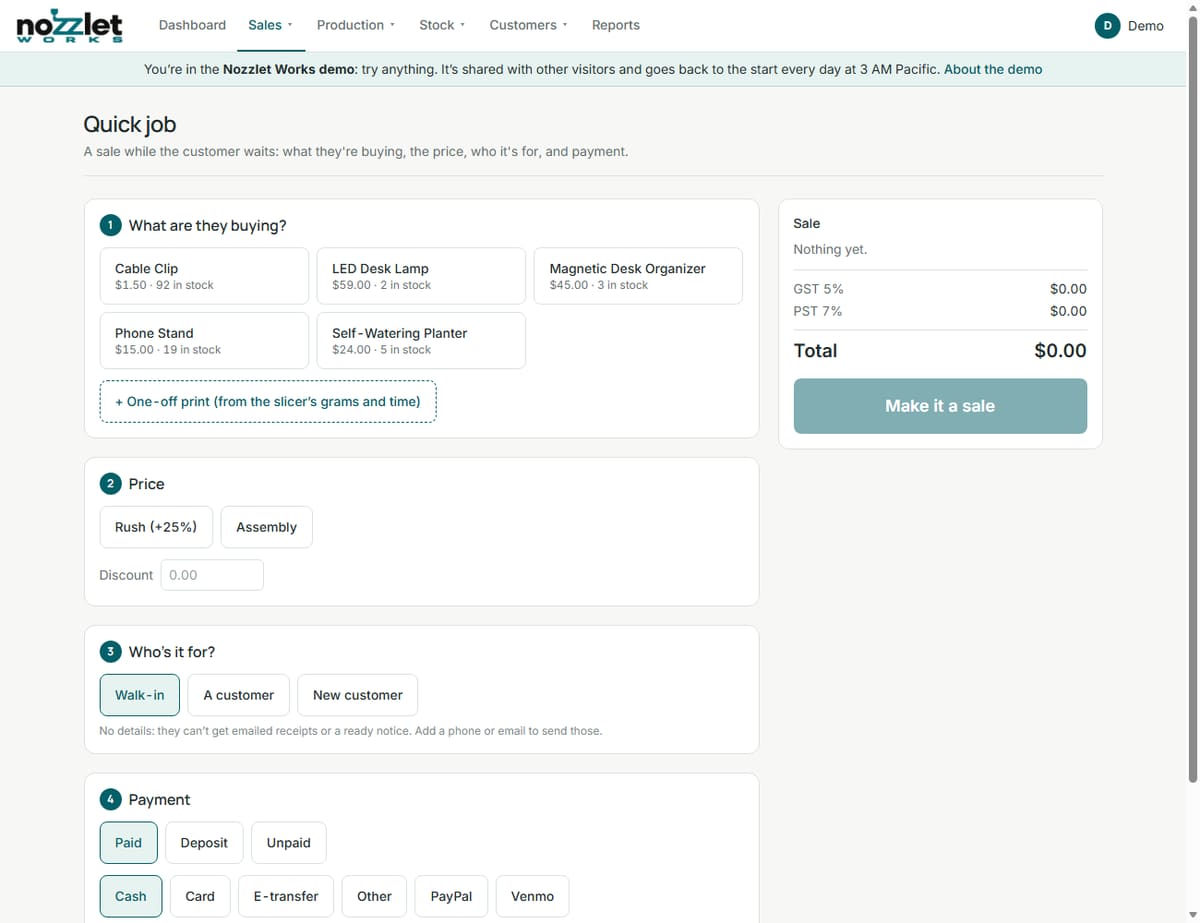
1. What are they buying?
- Tap a product to add it. Its price and stock are shown; use − and + for how many, and change the price each if you need to.
- + One-off print for something printed just for them, straight from your slicer: the printer, print time, filament and grams, hands-on minutes, and how many. Works costs it exactly as it costs a plate, and suggests a price from your target margin (shown with the cost). Type your own price if you prefer. A filament with no price is flagged.
2. Price
- Rush adds your rush fee (25% to start; set it in Settings).
- Your services, such as Assembly, by the minute at their hourly charge.
- A Discount.
Your minimum job charge and your taxes are applied automatically. The total on the right is worked out exactly as the order will be.
3. Who's it for?
- Walk-in: no details. (They can't be emailed a receipt or a ready notice.)
- A customer: one from your customer list.
- New customer: a name plus a phone or email, used for their order only.
If they're leaving with it, tick They're taking the products now: the order is marked Picked up and the products come off stock.
4. Payment
Paid, Deposit or Unpaid, and how they paid, from your payment methods. Cash is rounded to the nearest 5 cents, and Cash handed over works out the change.
Make it a sale
Make it a sale turns it into an order (SO-…), with the one-off print's details in its notes. Then start a New quick job, or open the order. On the Maker plan and up, Issue receipt (paid in full) or Issue invoice straight away.
Scheduling the print
A one-off print is saved as a plate for the order (for example "SO-0012 Replacement knob"). Schedule it opens Add job with that plate and the order filled in, suggested times included. The order then moves through Scheduled, Printing and Finishing as the job does.
Not sliced yet? Give an estimate
Tick Not sliced yet: estimate on a one-off print and enter a rough time and grams. Works shows a likely range (the print at 80% and 125% of your guess). Save the estimate saves a quote (Q-…, Sent, good for 30 days) with a note for the customer that the final price is confirmed once it's sliced. An estimate needs a customer and takes no payment yet.
Once it's sliced, update the plate's time and grams and the quote's price. The quote shows the estimate you gave and, if the price has changed, reminds you to tell the customer. Then Make it a sale.