
Every printer in Works has its own costs, hours, filament slots, nozzles and maintenance. Find them under Production › Printers; Add printer adds one (see Getting started).
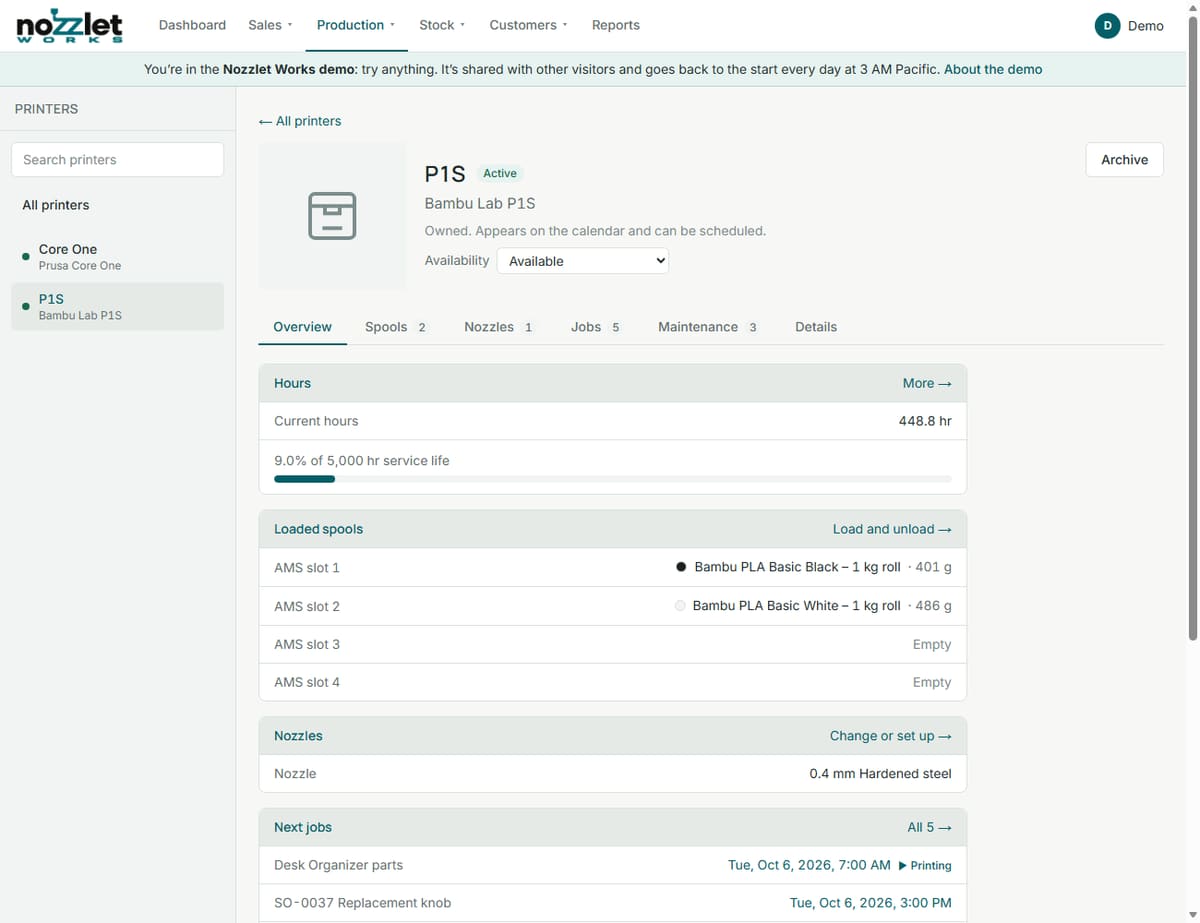
Active, proposed or archived
- Active: a printer you own. It appears on the schedule and can be given jobs.
- Proposed: a printer you're thinking of buying. Works costs plates on it so you can compare it with what you have, but never schedules it.
- Archive a printer you no longer use. Its history is kept.
Availability
On the printer's page, set it Available, Down for maintenance or Out of service. Find a time skips printers that aren't available, and Add job warns you if you pick one.
Its costs
On the Details tab: the Purchase cost, Residual value, Service life, Maintenance cost and Average power. Works turns them into running costs per print hour (depreciation and maintenance), shown on the Overview, and uses them in every plate it prints. See How Works costs a print.
Hours
Current hours are the starting hours you entered plus every finished job, and show how far through its service life the printer is. You can also record the printer's own meter reading (in Maintenance). Works flags a printer near the end of its service life on the Dashboard.
Slots and spools
Loaded spools shows each filament slot (for example AMS slots 1 to 4, or just one) and what's in it, with the grams left. Load and unload to change them. Works uses what's loaded when you start a job, and when it finishes one, it takes the grams from the loaded spool first.
Nozzles
Each nozzle position (Nozzle, or Left and Right on a two-nozzle printer) has a size and type, such as 0.4 mm hardened steel. Change or set up to record a change; the history is kept. If a plate was sliced for a different nozzle, Works warns you on its jobs.
Jobs and maintenance
The Jobs tab lists the printer's upcoming and finished jobs, and Maintenance its service tasks. See Maintenance.