
Starting and finishing a job keeps your stock, spools and printer hours right without any extra typing.
Starting a job
Click the job on the schedule and choose Start printing. A checklist opens:
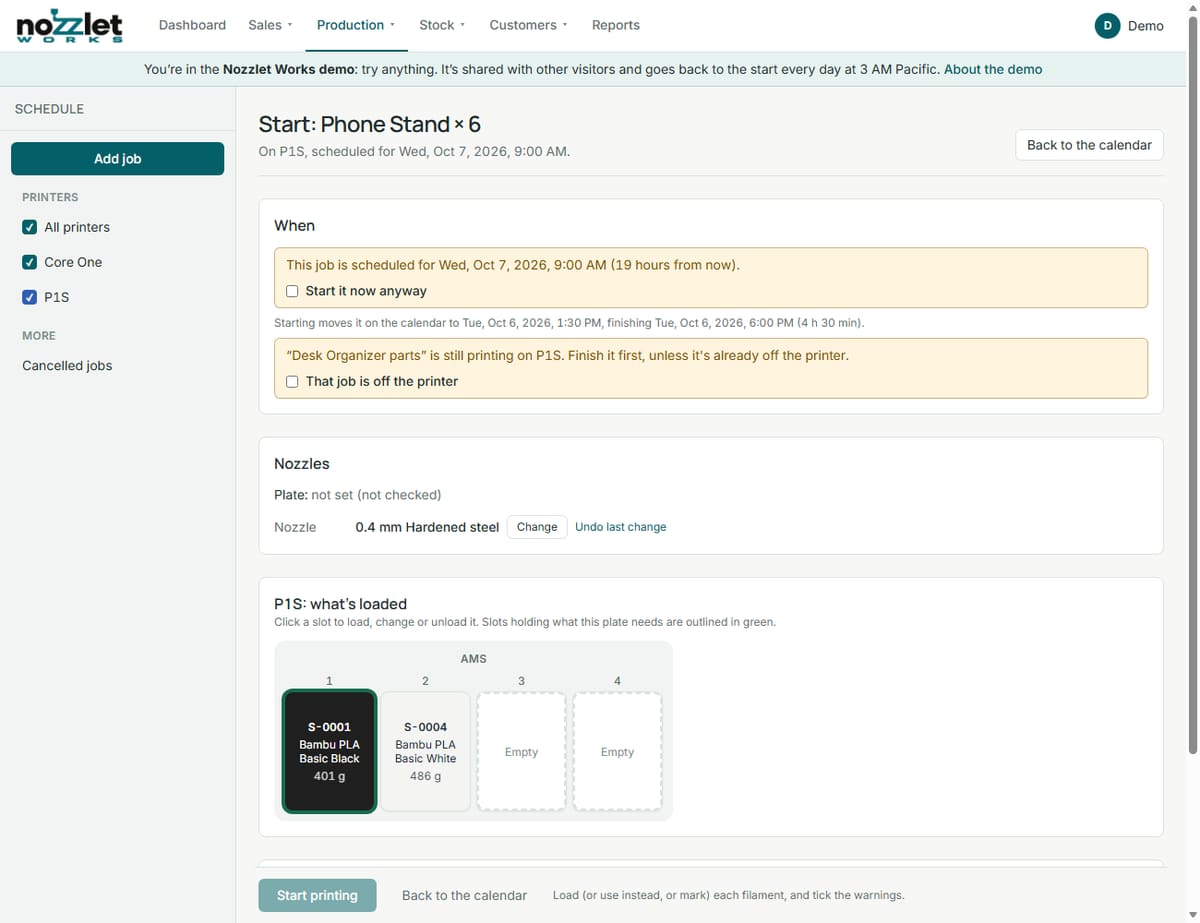
- When: if you're starting early or late, Works says how the job will move on the calendar. If another job is still printing on that printer, it asks you to finish that one first, unless it's already off the printer.
- Nozzles: what the plate was sliced for and what's on the printer. Change records a nozzle change.
- What's loaded: each slot and its spool. Click a slot to load, change or unload it. Slots holding what the plate needs are outlined in green.
- This plate needs: each filament, its grams, and whether it's loaded. If it isn't, load it, use a different filament for this job only, or mark it.
Then click Start printing. The job shows Printing on the calendar, and if it's for an order, the order moves to Printing.
Finishing a job
When the print is off the printer, click the job and choose Finish job:
- What came off the plate: for each item, Expected and how many came out Good. Good pieces go into stock; the rest is recorded as print loss. If nothing came out good, set them all to 0: the job is marked Failed, and its filament is still taken from stock.
- Filament used: the grams for each filament, starting from your slicer's figure. Change them if the job used more or less.
Click Finish job. The job is marked Done, the good pieces are added to stock, the grams come off your spools (the loaded spool first, then open spools, then new rolls), and the printer's hours go up.
A job printed for an order (a one-off from Quick job, say) adds nothing to stock. If it didn't come out right, tick It didn't come out right to mark it Failed, and print it again.
Made a mistake?
Undo finish puts everything back: the job, the stock and the spools. A job you no longer need can be cancelled, and restored from Cancelled jobs.
Print loss under Reports shows, for a period and printer, how many pieces were lost and what they cost.